If you’re dealing with data in the cloud, Azure Data Factory isn’t just another tool—it’s your ultimate data orchestration powerhouse. Seamlessly move, transform, and automate data across on-premises and cloud sources with ease.
What Is Azure Data Factory and Why It Matters

Azure Data Factory (ADF) is Microsoft’s cloud-based data integration service that allows organizations to create data-driven workflows for orchestrating and automating data movement and transformation. It plays a pivotal role in modern data architectures, especially within the Azure ecosystem.


Core Definition and Purpose
Azure Data Factory enables businesses to build complex ETL (Extract, Transform, Load) and ELT (Extract, Load, Transform) pipelines without managing infrastructure. It’s serverless, which means you focus on logic, not servers.
- It connects to over 100 data sources, including SQL Server, Oracle, Amazon S3, and Salesforce.
- It supports both batch and streaming data integration.
- It integrates natively with other Azure services like Azure Synapse Analytics, Azure Databricks, and Azure Blob Storage.
“Azure Data Factory is the backbone of data integration in Azure, enabling scalable, reliable, and secure data workflows.” — Microsoft Azure Documentation
Evolution from SSIS to Cloud-Native
Before ADF, many enterprises relied on SQL Server Integration Services (SSIS) for ETL processes. While SSIS is powerful, it’s limited to on-premises environments and requires significant maintenance.
Azure Data Factory evolved as a cloud-native successor, offering:
- Global scalability and high availability.
- Pay-as-you-go pricing model.
- Seamless hybrid integration via the Self-Hosted Integration Runtime.
This shift allows organizations to modernize legacy data workflows and embrace cloud agility.
Azure Data Factory Architecture: Key Components Explained
To truly harness the power of Azure Data Factory, you need to understand its core architectural components. Each element plays a distinct role in building robust data pipelines.
Linked Services and Data Sources
Linked services are the connectors that define how ADF connects to external data stores or compute resources. Think of them as connection strings with additional metadata.
- They support authentication via keys, service principals, managed identities, and OAuth.
- Examples include Azure Blob Storage, Azure SQL Database, and REST APIs.
- You can encrypt credentials using Azure Key Vault for enhanced security.
For more details, visit the official Microsoft documentation on linked services.
Datasets and Data Flows
Datasets represent the structure and location of data within a linked service. They don’t store data but define a view over it.
- Datasets are used as inputs and outputs in activities within a pipeline.
- They support various formats: JSON, Parquet, Avro, CSV, and more.
- Data flows, on the other hand, allow visual transformation of data using a drag-and-drop interface.
Data flows run on Azure Databricks clusters under the hood, enabling powerful transformations without writing code.
Pipelines and Activities
Pipelines are the workflows that orchestrate activities. An activity is a single operation within a pipeline—like copying data or running a function.
- Copy Activity moves data from source to destination efficiently.
- Lookup Activity retrieves data for use in subsequent steps.
- Web Activity calls REST endpoints to trigger external processes.
You can chain activities using control flow logic such as IF conditions, ForEach loops, and Until loops.
7 Powerful Features of Azure Data Factory
Azure Data Factory stands out due to its rich feature set. Let’s dive into seven of its most impactful capabilities that make it a top choice for enterprise data integration.
1. Visual Integration and No-Code Development
ADF provides a user-friendly UI that allows both technical and non-technical users to build pipelines visually.
- Drag-and-drop interface for creating pipelines and data flows.
- Pre-built templates for common scenarios like data migration and warehouse loading.
- Real-time validation and error highlighting during design.
This lowers the barrier to entry and accelerates development cycles.
2. Built-in Support for Hybrid Data Scenarios
Many organizations still rely on on-premises databases. ADF handles this through the Self-Hosted Integration Runtime (SHIR).
- SHIR acts as a bridge between cloud and on-premises networks.
- It runs on a local machine or VM and securely communicates with ADF over HTTPS.
- Supports firewall traversal and private network access via Azure Private Link.
This makes ADF ideal for companies transitioning from legacy systems.
3. Native Integration with Azure Ecosystem
Azure Data Factory doesn’t exist in isolation—it’s deeply integrated with the broader Azure platform.
- Seamless connection to Azure Synapse Analytics for data warehousing.
- Integration with Azure Databricks for advanced analytics and machine learning.
- Event-driven triggers using Azure Event Grid and Azure Logic Apps.
For example, you can trigger an ADF pipeline when a new file lands in Azure Blob Storage using Event Grid.
4. Serverless and Scalable Compute
ADF uses serverless compute for many operations, meaning you don’t manage infrastructure.
- Copy operations scale automatically based on data volume.
- Data flows use auto-scaling Databricks clusters.
- You only pay for what you use—no idle costs.
This scalability ensures performance even during peak loads.
5. Advanced Monitoring and Diagnostics
Monitoring is critical in production environments. ADF provides comprehensive tools for tracking pipeline execution.
- Activity-level monitoring with duration, status, and input/output details.
- Integration with Azure Monitor and Log Analytics for centralized logging.
- Alerts via email, SMS, or webhooks when failures occur.
You can also use the Pipeline Runs view to debug issues in real time.
6. Git Integration and CI/CD Support
For DevOps teams, ADF supports collaboration and continuous integration.
- Connect your ADF instance to GitHub or Azure Repos.
- Version control all pipeline changes.
- Deploy pipelines across environments (Dev, Test, Prod) using release pipelines.
This ensures consistency, traceability, and faster deployment cycles.
7. Security and Compliance by Design
Data security is non-negotiable. ADF embeds security at every level.
- Role-Based Access Control (RBAC) for fine-grained permissions.
- Managed identities eliminate credential storage.
- Encryption at rest and in transit using Azure-managed or customer-managed keys.
It also complies with standards like GDPR, HIPAA, and ISO 27001.
How to Build Your First Azure Data Factory Pipeline
Now that you understand the components and features, let’s walk through creating a simple pipeline that copies data from Blob Storage to Azure SQL Database.
Step 1: Create an Azure Data Factory Instance
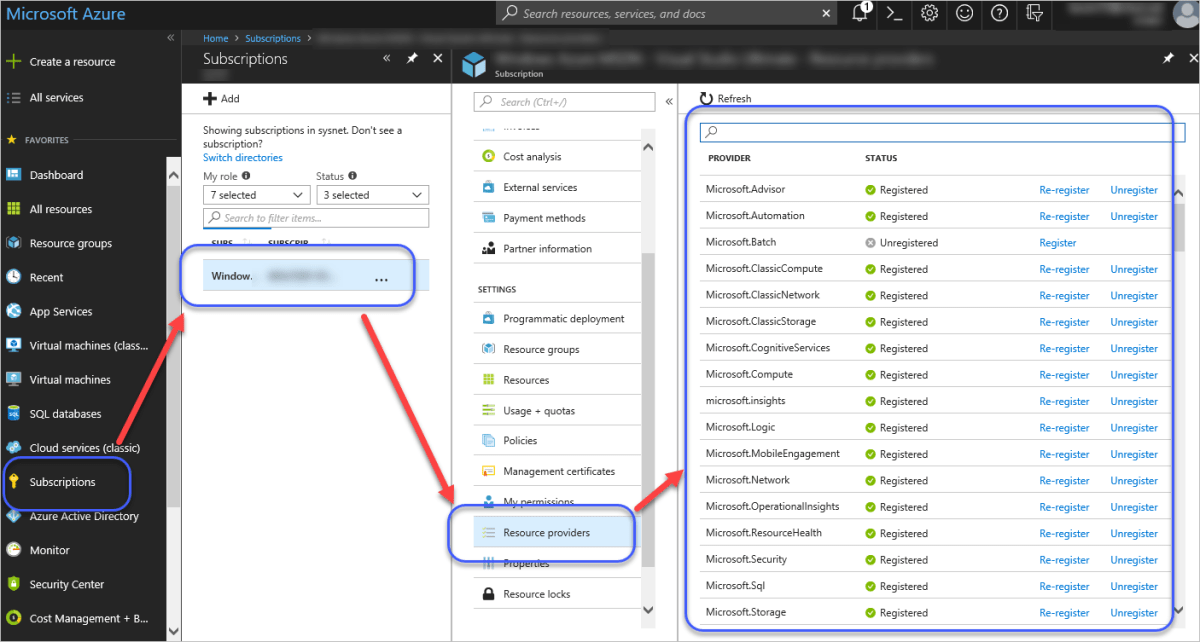
Log in to the Azure portal and create a new Data Factory resource.
- Choose a unique name (e.g.,
mydatafactorypro). - Select your subscription and resource group.
- Pick a region (preferably close to your data sources).
Once deployed, open the ADF studio to start building.
Step 2: Set Up Linked Services
You’ll need two linked services: one for Azure Blob Storage and one for Azure SQL Database.
- Navigate to the Manage tab and create a new linked service.
- Select the service type and enter connection details.
- Test the connection to ensure it works.
Use managed identity for SQL DB to avoid storing passwords.
Step 3: Define Datasets
Create datasets that reference your linked services.
- For Blob Storage, specify the container and file path.
- Choose the format (e.g., CSV or JSON).
- For SQL Database, select the table or write a custom query.
These datasets will be used as input and output in your pipeline.
Step 4: Design the Pipeline
Go to the Author tab and create a new pipeline.
- Add a Copy Data activity.
- Set the source dataset (Blob) and sink dataset (SQL DB).
- Configure mapping if column names differ.
You can preview data at each step to validate correctness.
Step 5: Test and Trigger the Pipeline
Before scheduling, test the pipeline manually.
- Click Debug to run the pipeline in test mode.
- Monitor the output in the Monitor tab.
- Fix any errors (e.g., schema mismatch).
Once successful, set up a trigger (e.g., run every day at 2 AM).
Use Cases: Where Azure Data Factory Shines
Azure Data Factory is versatile and used across industries. Here are some real-world scenarios where it delivers exceptional value.
Data Warehousing and Lakehouse Integration
Organizations use ADF to populate data warehouses like Azure Synapse or Snowflake.
- Extract sales data from ERP systems.
- Transform and clean it using data flows.
- Load into a star schema for BI reporting.
This enables timely insights for decision-makers.
Real-Time Data Ingestion
With support for event-driven triggers, ADF can process streaming data.
- Trigger a pipeline when a new IoT sensor file arrives in Blob Storage.
- Process and enrich the data.
- Send results to Power BI for live dashboards.
This is crucial for monitoring and alerting systems.
Cloud Migration and Data Consolidation
When moving from on-premises to cloud, ADF simplifies data migration.
- Use SHIR to connect to legacy SQL Server instances.
- Copy data to Azure SQL or Cosmos DB.
- Validate data consistency post-migration.
It reduces downtime and ensures data integrity.
Performance Optimization Tips for Azure Data Factory
While ADF is powerful, performance can degrade if not optimized. Here are best practices to keep your pipelines fast and efficient.
Optimize Copy Activity Settings
The Copy Activity is often the bottleneck. Tune it for better throughput.
- Enable Compression (e.g., GZip) for large files.
- Use Binary Copy when schema conversion isn’t needed.
- Adjust Parallel Copies based on source/sink capacity.
For more, see Microsoft’s performance guide.
Leverage Staging for High-Volume Transfers
For large datasets, use staging with Azure Blob Storage or ADLS Gen2.
- Enable Copy Throughput Optimization using staging.
- ADF automatically uses PolyBase or COPY INTO commands for SQL DW.
- Reduces load on source systems.
This can improve transfer speeds by up to 5x.
Use Data Flow Debug Mode Wisely
Data flows are powerful but resource-intensive.
- Limit debug cluster size during development.
- Turn off debug mode when not in use to save costs.
- Use schema drift detection to handle dynamic inputs.
Always optimize transformations before going live.
Common Challenges and How to Solve Them
Even with its strengths, users face challenges when working with Azure Data Factory. Here’s how to overcome them.
Handling Schema Changes and Data Drift
Data sources often change structure, breaking pipelines.
- Use schema validation in datasets.
- Enable Schema Drift in data flows to accept new columns.
- Implement error handling with Conditional Split transformations.
This makes pipelines resilient to change.
Debugging Failed Pipeline Runs
When a pipeline fails, quick diagnosis is key.
- Check the Activity Output for error messages.
- Review logs in Azure Monitor.
- Use Watermarking to track incremental data loads.
Set up email alerts to catch issues early.
Managing Costs Effectively
ADF pricing can spike if not monitored.
- Use Integration Runtime Hours wisely—SHIR is billed per node-hour.
- Limit data flow debug sessions.
- Use AutoResolvingIntegrationRuntime for lightweight tasks.
Monitor usage in the Azure Cost Management dashboard.
Future of Azure Data Factory: Trends and Roadmap
Azure Data Factory continues to evolve. Understanding upcoming trends helps you stay ahead.
AI-Powered Data Integration
Microsoft is integrating AI into ADF for smarter workflows.
- AI-driven mapping suggestions in data flows.
- Automated anomaly detection in data pipelines.
- Natural language to pipeline generation (in preview).
This reduces manual effort and accelerates development.
Enhanced Observability and Governance
Data governance is becoming critical.
- Tighter integration with Azure Purview for data lineage.
- End-to-end tracing from source to report.
- Impact analysis before making changes.
These features help meet compliance requirements.
Low-Code and Citizen Developer Focus
Microsoft aims to empower non-developers.
- More templates and guided experiences.
- Integration with Power Platform for workflow automation.
- Improved UX for business analysts.
This democratizes data integration across teams.
What is Azure Data Factory used for?
Azure Data Factory is used to create, schedule, and manage data integration workflows. It helps move and transform data from various sources (on-premises, cloud) into destinations like data warehouses, lakes, or analytics platforms for reporting and machine learning.
Is Azure Data Factory ETL or ELT?
Azure Data Factory supports both ETL and ELT patterns. You can transform data before loading (ETL) using data flows or transformation activities, or load raw data first and transform it later in systems like Azure Synapse or Databricks (ELT).
How much does Azure Data Factory cost?
Azure Data Factory uses a consumption-based pricing model. You pay for pipeline runs, data movement, and data flow execution. There is a free tier with limited operations. Costs vary based on region, volume, and integration runtime usage. See the official pricing page for details.
Can Azure Data Factory replace SSIS?
Yes, Azure Data Factory can replace SSIS, especially in cloud or hybrid environments. It offers a modern, scalable alternative with built-in cloud integration, DevOps support, and visual tools. Legacy SSIS packages can even be migrated using the SSIS IR in ADF.
How does Azure Data Factory compare to AWS Glue?
Both are cloud ETL services. ADF is tightly integrated with Azure services and offers stronger hybrid support. AWS Glue is serverless and uses PySpark by default. ADF provides more visual development options, while Glue leans toward code-based workflows. Choice depends on cloud platform preference.
Azure Data Factory is more than just a data pipeline tool—it’s a comprehensive orchestration engine that empowers organizations to automate, integrate, and govern their data at scale. From its intuitive UI to deep Azure integration, powerful monitoring, and future-ready AI features, ADF stands as a cornerstone of modern data platforms. Whether you’re migrating from on-premises, building a data lake, or enabling real-time analytics, Azure Data Factory provides the flexibility, security, and performance needed to succeed in today’s data-driven world.
Recommended for you 👇
Further Reading: